
![Featured image for [Docker] Multi-architecture build](https://tired-i.com/wp-content/uploads/2026/01/docker-multi-ar-image.png)
1. 멀티 플랫폼을 지원하는 이미지 생성하기

![[Docker] Buildx로 cross-platform 이미지 빌드하기](https://velog.velcdn.com/images/koo8624/post/6270542c-398a-463b-b819-4c5625a2a39f/xxx.jpeg)
2. 문제
Macbook air m1에서 빌드한 이미지는 다른 CPU 아키텍처를 사용하는 컴퓨터에서는 동작하지 않는다.
그래서 이미지를 빌드할 때부터 다양한 플랫폼에서 지원되도록 빌드해야 한다.
이때 사용할 수 있는 것이 buildx다.
3. Build platform
먼저 Build instance을 만든다.
다음을 입력한다.
docker buildx create --name multiarch-builder --use
Code language: PHP (php)
docker buildx inspect --bootstrap 명령어를 치면, 현재 buildx가 use하는 빌더가 지원하는 플랫폼들을 확인할 수 있다.
docker buildx inspect --bootstrap
Name:   multiarch-builderDriver: docker-containerNodes:Name:      multiarch-builder0Endpoint:  unix:///var/run/docker.sockStatus:    runningPlatforms: linux/amd64, linux/arm64, linux/riscv64, linux/ppc64le, linux/s390x, linux/386, linux/mips64le, linux/mips64, linux/arm/v7, linux/arm/v6
Code language: JavaScript (javascript)
4. 부족한 Platform 추가하기
추천 자료 : https://rlxuc0ppd.toastcdn.net/presentation/[NHN FORWARD 2020]Docker ARM 되고 말고.pdf ← 꼭 읽어보기를 권합니다.
이래서 좋은 회사에 취직해야 해.
도커에서는 멀티 플랫폼 이미지를 빌드하는 3가지 방법을 제공한다.
- Using the QEMU emulation support in the kernel
- Building on multiple native nodes using the same builder instance
- Using a stage in Dockerfile to cross-compile to different architectures
공홈 기준 QEMU을 사용한 방법을 권장한다.
Dockerfile을 별다른 수정 없이 BuildKit이 자동으로 사용가능한 secondary architectures를 찾아 사용할 것이다.
단 BuildKit은 빌드하기 원하는 secondary architectures의 바이너리가 필요하다.
이 바이너리는 binfmt_misc handler에 등록된 경우 자동으로 로드된다.
Docker Decktop을 사용 중이라면 docker buildx ls 명령어를 실행해 Docker Desktop에서 제공하는 플랫폼들의 종류를 확인할 수 있다.
docker buildx ls
추가적으로 필요한 플랫폼의 바이너리는 binfmt을 사용하여 binfmt_misc handler에 추가할 수 있습니다.
docker run --privileged --rm tonistiigi/binfmt --install all
# all : 모두 설치
Code language: PHP (php)
추가 설명
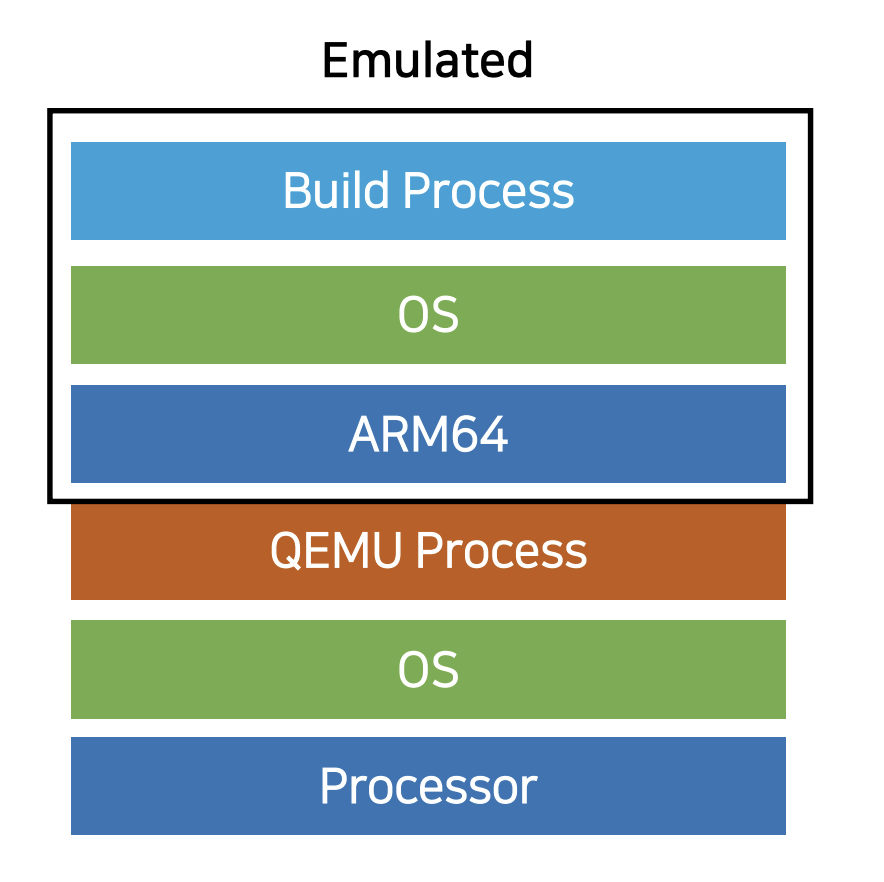
ARM64를 Target arch를 해서 빌드하는 상황이다.
QEMU는 크로스플랫폼을 지원하는 하이퍼바이저의 일종이다.
도커는 QEMU를 사용해서 내부적으로 빌드 환경을 emulate한다.
Target의 Arch와 동일하게 에뮬레이션 한 뒤에 그 안에서 빌드를 수행한다.
Hipervisor: 호스트 컴퓨터에서 다수의 운영 체제를 동시에 실행하기 위한 논리적 플랫폼(platform)을 말한다. virtual machine monitor 또는 virtual machine manager, 줄여서 VMM라고도 부른다.
이때 QEMU가 실제 애플리케이션의 수행 범위와 상관없이 모든 시스템을 에뮬레이션 하면 리소스를 과하게 사용한다.
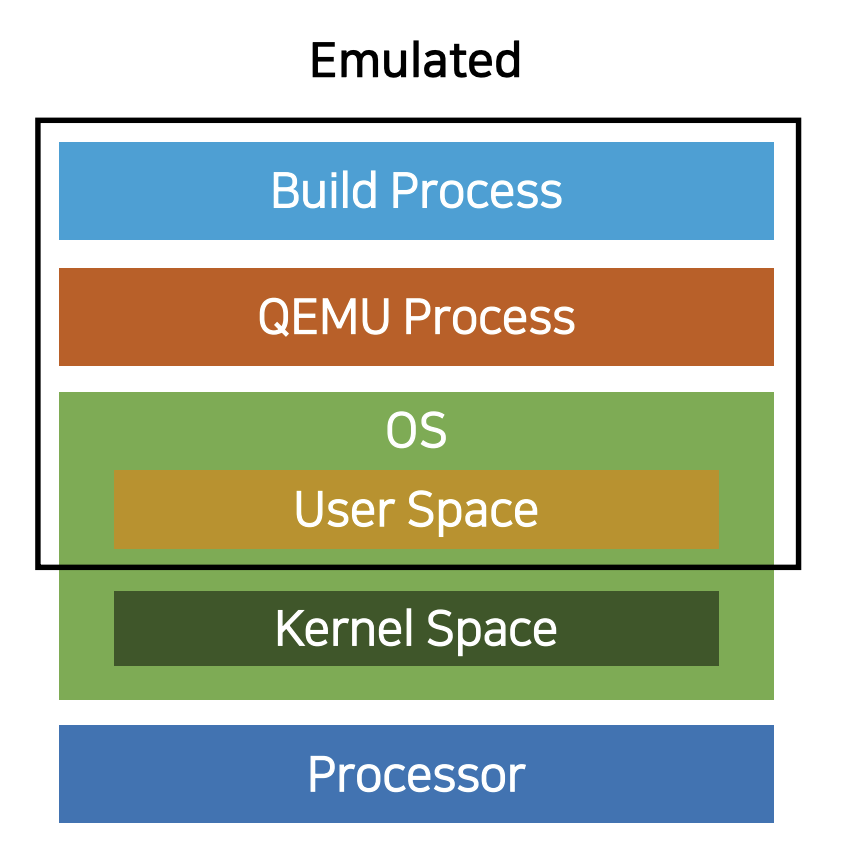
이를 방지하기 위해서 binfmt_misc를 활용한다.
binfmt_misc는 Binary Format Miscellaneous(기타 잡다한 이진 형식?)의 약자로 이기종 포맷의 바이너리가 실행될 때 적절한 인터프리터를 등록한다.
binfmt_misc는 리눅스 커널의 기능으로 임의의 실행 파일 형식을 인식하여 에뮬레이터 및 가상 머신과 같은 특정 사용자 공간 응용 프로그램에 전달할 수 있다.
현재 호스트 환경에서 해석할 수 없는 명령어(ex, 다른 아키텍처)를 만났을 때, 유저 스페이스에 해당 명령어를 처리할 수 있는 QEMU에게 해당 명령어를 처리하도록 한다. (필요할 때 필요한 만큼만)
이로서 전체를 elmulate하는 것보다 효율적으로 build를 수행할 수 있다.
BuildKit: BuildKit는 기존 빌더를 대체하기 위한 개선된 백엔드입니다. 이는 Dockerfile의 재사용성과 빌드 성능을 향상하는 새로운 기능을 제공한다.
출처 : https://ko.wikipedia.org/wiki/QEMU
출처 : https://rlxuc0ppd.toastcdn.net/presentation/[NHN FORWARD 2020]Docker ARM 되고 말고.pdf
출처 : https://en.wikipedia.org/wiki/Binfmt_misc
출처 : https://docs.docker.com/build/buildkit/
5. Build 수행
docker buildx build --tag <registry>/<image> --output type=<TYPE> .
Code language: HTML, XML (xml)image: exports the build result to a container image.registry: exports the build result into a container image, and pushes it to the specified registry.
--output 은 옵션이라 없어도 빌드는 수행한다.
하지만 어디에 이미지가 위치하는지 찾기 어려울 거다.
아래는 대표적인 <TYPE>들이다.
local: exports the build root filesystem into a local directory.tar: packs the build root filesystem into a local tarball.oci: exports the build result to the local filesystem in the OCI image layout format.docker: exports the build result to the local filesystem in the Docker image format.cacheonly: doesn’t export a build output, but runs the build and creates a cache.
가. —platform=?
우리의 목표는 단순히 이미지를 빌드하는 것을 넘어서 다양한 아키텍처에서 실행가능한 이미지를 빌드하는 것이다.
지원할 architecture들을 설정하는 옵션은 --platform이다.
# error 발생합니다. 사용하지 마세요!
docker buildx build --platform=linux/amd64,linux/arm64 -t <registry>/<image> --load .
Code language: HTML, XML (xml)--platform=linux/arm64,linux/amd64띄어쓰지 말자.
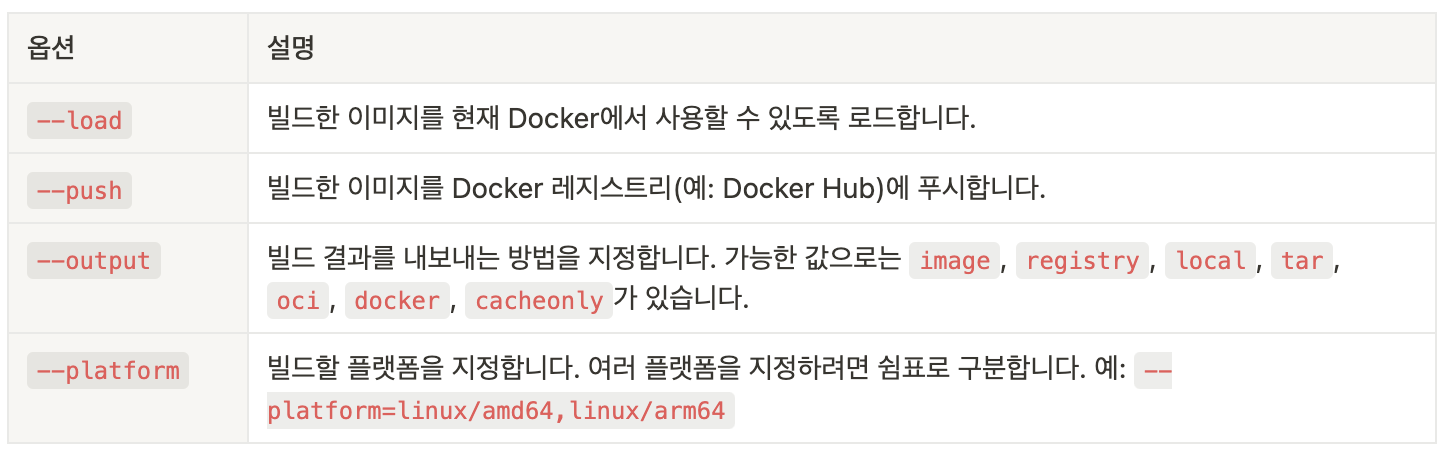
자… 상식적인 선에서 멀티 플랫폼을 지원하는 이미지를 빌드해서 로컬에 바로 이미지를 생성하고자 했다.
하지만 위의 명령어를 그대로 사용하면 에러가 발생할 것이다.
$ docker buildx build --platform=linux/amd64,linux/arm64 -t studynode:1.1-multiarch --output=type=docker .
ERROR: docker exporter does not currently support exporting manifest lists
빌드한 이미지는 docker images로 보기 위해서는 build를 수행할 때 --load 옵션이 필요한데 이것은 멀티 플랫폼 이미지와는 사용할 수 없다.
• --load: This flag instructs docker to load the resulting image into the local docker images list. However, this currently only works for single-architecture images. If you try this with multi-architecture images you’ll get an export error:
결과적으로 멀티 플랫폼 이미지는 특정 registry로 push하거나 로컬에 파일로 export할 수밖에 없다.
docker buildx build --platform=linux/amd64,linux/arm64 -t studynode:1.1-multiarch --output type=local,dest=/workspaces/Study_nodeJS/ .
Code language: JavaScript (javascript)
로컬 파일로 export하는 것은 엄청 오래 걸린다.
The local and tar exporters output the root filesystem of the build result into a local directory. They’re useful for producing artifacts that aren’t container images.
localexports files and directories.tarexports the same, but bundles the export into a tarball.
진짜 말 그대로 그냥 파일이다.
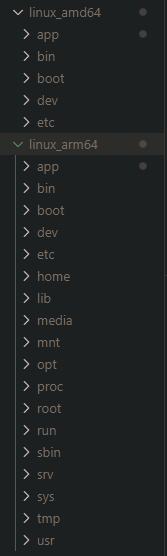
굳이? 사용하지 말자.
특정한 container registry로 output해야 하는데 dockerhub이 가장 많이 사용된다.
하지만 굳이 Github container registry로 push해보자.
docker login ghcr.io -u ramen4598
Code language: CSS (css)
docker buildx build --platform=linux/amd64,linux/arm64 -t ghcr.io/ramen4598/studynode:1.1-multiarch --push .
ERROR: failed to solve: failed to push ghcr.io/ramen4598/studynode:1.1-multiarch: unexpected status: 403 Forbidden
Code language: HTTP (http)
오류가 발생한다.
아 제발
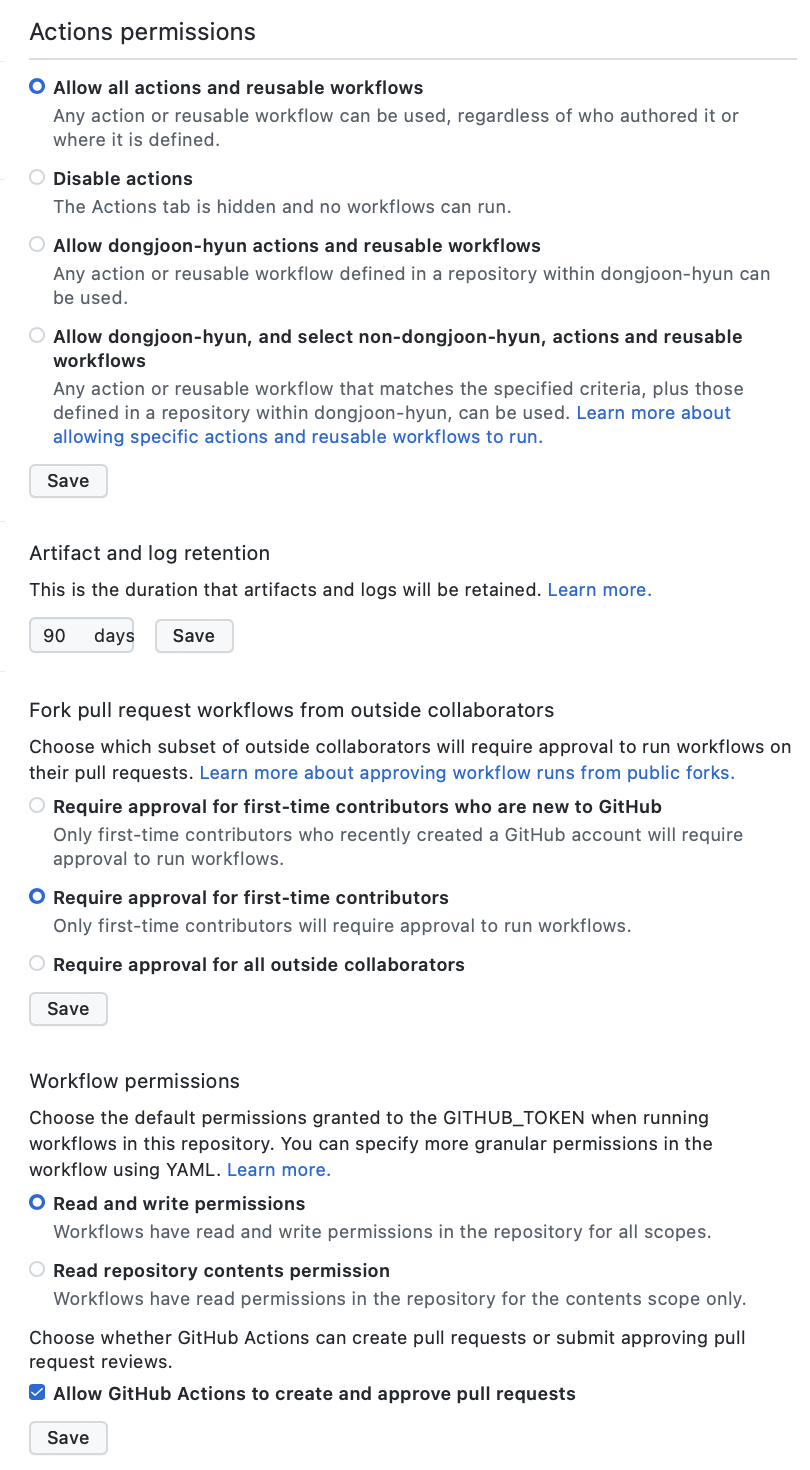
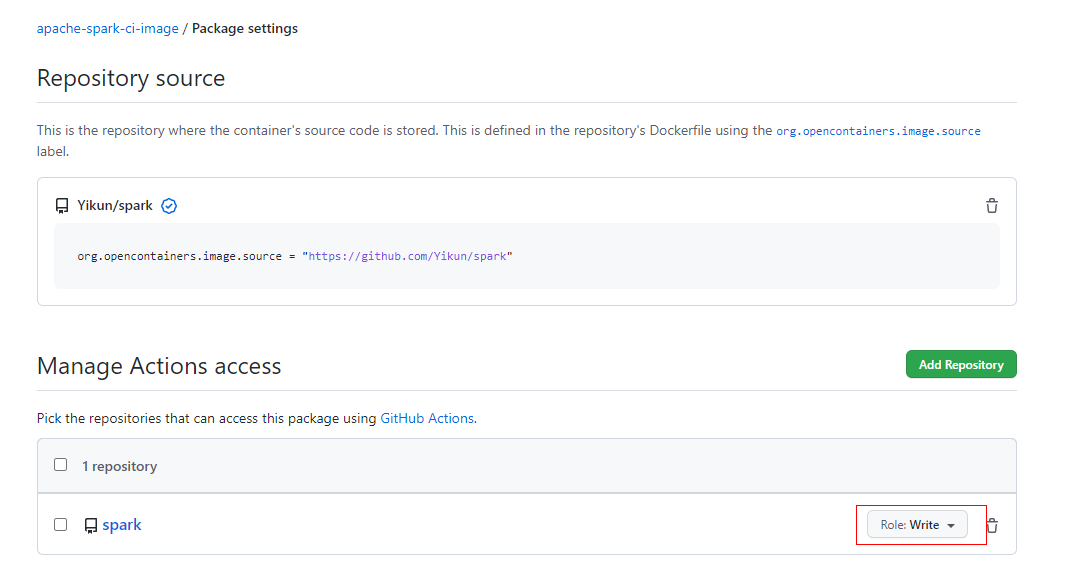
package setting을 변경해야 한다.
- package settings → Actions
 |  |
6. Bug
자 사실 여기서부터는 multi platform build와는 상관없다.
그냥 한 명의 개발자가 버그 잡는 내용이다.
가. bug : npm ERR! code ENOENT
npm ERR! code ENOENT
study_nodejs-studynode-1  | npm ERR! syscall open
study_nodejs-studynode-1  | npm ERR! path /app/package.json
study_nodejs-studynode-1  | npm ERR! errno -2
study_nodejs-studynode-1  | npm ERR! enoent ENOENT: no such file or directory, open '/app/package.json'
study_nodejs-studynode-1  | npm ERR! enoent This is related to npm not being able to find a file.
study_nodejs-studynode-1  | npm ERR! enoent
Code language: JavaScript (javascript)
Here are the steps to resolve this issue:
- Make sure you are using the latest npm version
- Clean your npm cache
- Delete
node_modulesfolder andpackage-lock.json - Run
npm installagain
# 👇 update npm to the latest version
npm install -g npm@latest

# 👇 clean npm cache
npm cache clean --force

# 👇 delete node modules and package-lock.json
npm rm -rf node_modules && rm package-lock.json

# 👇 retry installing dependencies
npm install
Code language: PHP (php)
나는 이 유형의 문제는 아니었고 docker-compose.yml에서 volumes 경로를 잘못 설정해서 발생했다.
나. Bug : pm2 log가 멈춘다.
study_nodejs-studynode-1  | 2023-03-04T08:19:16: PM2 log: [--no-daemon] Continue to stream logs
study_nodejs-studynode-1  | 2023-03-04T08:19:16: PM2 log: [--no-daemon] Exit on target PM2 exit pid=19
Code language: PHP (php)pm2는 애플리케이션을 백그라운드에 보내고 실행한다.
도커를 지속적으로 동작시키기 위해서 --no-daemon 옵션을 사용했다.
하지만 구글링을 결과 도커에서 pm2를 동작시킬 때 pm2-runtime을 사용해야 한다는 사실을 배웠다.
pm2-runtime : 도커 컨테이너에서 사용하는 용도로, 애플리케이션을 foreground에 유지하고 컨테이너를 계속 실행하게 함.
pm2-runtime start ecosystem.config.js --no-daemon
# error: unknown option `--no-daemon'
Code language: PHP (php)pm2-runtime으로 로그를 보기 위해서는 따로 옵션을 넣을 필요가 없다.
그 자체로 foreground에 위치하기에 별도의 옵션 없이도 로그를 볼 수 있다.

다. Bug :WORKDIR와 bind mount 위치
아무 생각 없이 Dockerfile의 COPY 작업을 수행한 WORKDIR과 docker-compose.yml의 volumes (bind mount)한 디렉터리를 같게 했다.
조금만 생각해 보면 이렇게 하면 안 된다는 것을 알 수 있다.
compose를 수행하면서 로컬의 파일이 컨테이너의 파일을 완전히 덮어쓴다.
#Dockerfile

FROM node:18.14.2

RUN apt update && apt install -y git zsh vim

RUN npm install pm2 -g -y

WORKDIR /app

COPY package.json package-lock.json ./

RUN npm ci -y

COPY ecosystem.config.js src ./

EXPOSE 3000

ENTRYPOINT npm start

CMD /bin/bash
Code language: PHP (php)
기껏 수행한 WORKDIR /app, COPY package.json package-lock.json ./, RUN npm ci -y, COPY ecosystem.config.js src ./이 쓸모없어졌다.
되도록 Dockerfile의 WORKDIR 하위의 어느 디렉터리에 volumes(bind mount)를 하기를 추천한다.
힘들어 살려줘…